
Why Your Photos Don't Fit Your Screen Right
You've probably tried this before: you take a great photo, set it as your wallpaper, and suddenly your dog's face is cut in half or the whole image looks stretched and pixelated. This happens because most photos aren't shot in the exact aspect ratio your phone, laptop, or monitor needs.
A photo taken on a phone camera might be 4:3 or 9:16, but your desktop monitor could need 16:9 or even 21:9 for an ultrawide screen — so without resizing, your device just stretches or crops the image to force it to fit.
Here's a concrete example: a typical phone photo shot vertically is around 3:4. If you try to set that directly as a desktop wallpaper — which usually needs 16:9 — your operating system will either squash the image sideways (distorting everything in it) or crop huge sections off the top and bottom just to make it fit. Neither looks good, and neither is actually necessary once you know how to resize properly first.
The fix isn't complicated, and you don't need Photoshop, Canva, or any design skills. You just need to resize and crop the photo to match your exact screen dimensions before setting it as wallpaper — and that's exactly what the Wallpaper Fit Tool does in seconds.
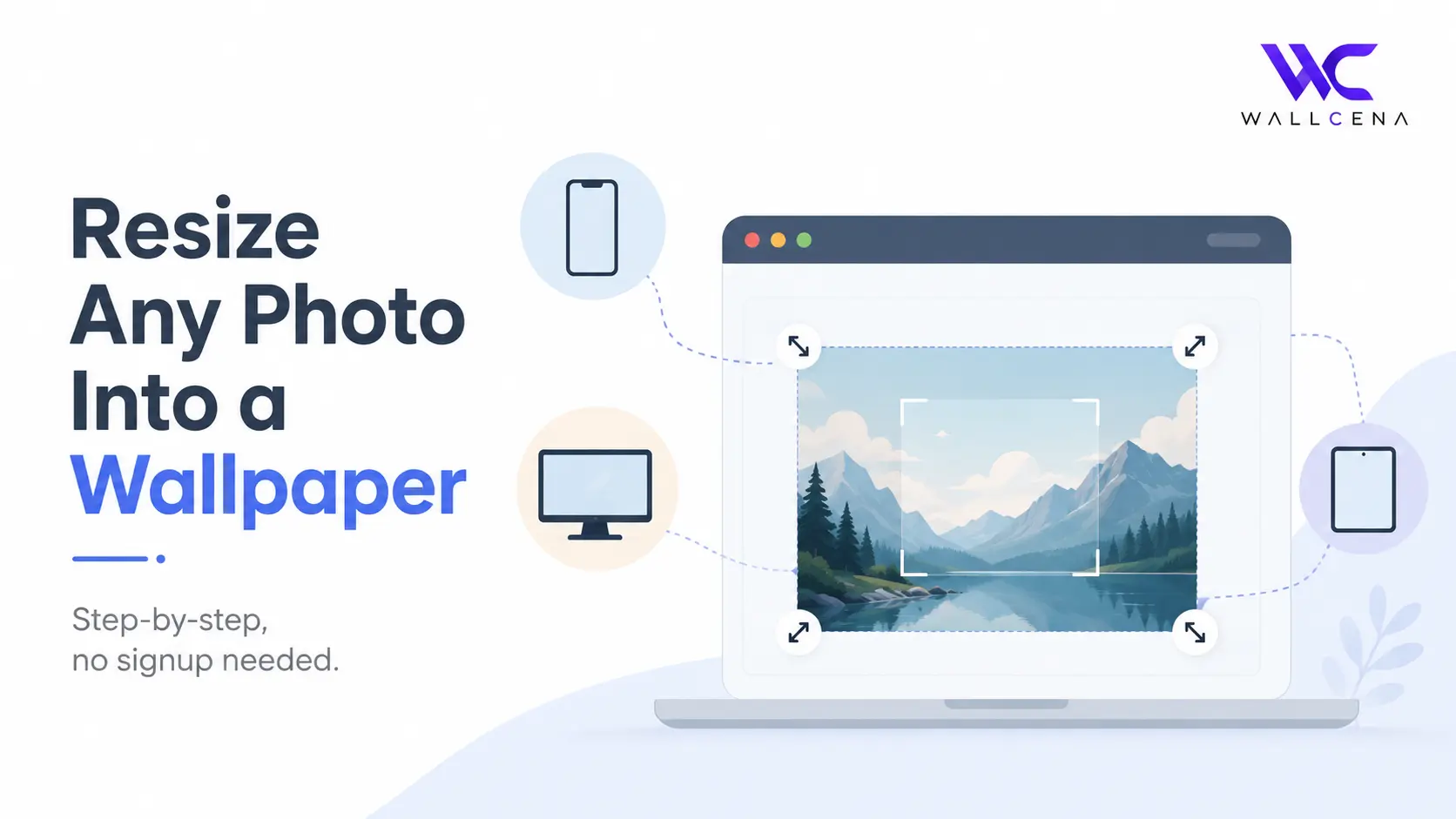
Step-by-Step: Resize Any Photo Into a Wallpaper
Step 1: Open the Wallpaper Fit Tool
Head to wallcena.com/fit — no signup or account required. The tool runs entirely in your browser, which matters for the next step.
Step 2: Upload Your Photo
Drag and drop your image into the upload area, or click to select it from your device. It works with JPG, PNG, WebP, and GIF files, regardless of the original size. Because everything is processed locally in your browser, your photo is never uploaded to a server — it stays fully private on your device.
Step 3: Choose Your Target Size
Pick the preset that matches your device:
- 4K — 3840 × 2160, for high-res monitors and TVs
- 1440p — 2560 × 1440, common gaming/QHD monitors
- 1080p — 1920 × 1080, standard Full HD screens
- Ultrawide — 3440 × 1440, for curved/ultrawide monitors
- Dual — 5120 × 1440, for dual-monitor setups spanning both screens
- iPhone PM — 1290 × 2796, for iPhone Pro Max models
- iPhone Pro — 1179 × 2556, for standard iPhone Pro models
- Android — 1080 × 2400, fits most modern Android phones
- iPad — 2048 × 2732, sized for iPad screens
Not sure which one matches your device? Select Custom and enter your screen's exact resolution instead.
Step 4: Adjust the Crop
Once you pick a size, a live preview shows exactly how your photo will be cropped. If the important part of the image — a face, a landmark, a focal point — gets cut off, reposition the crop area so nothing important is lost.
Step 5: Download Your Fitted Wallpaper
Click Download Fitted Wallpaper and the perfectly sized image saves directly to your device. From there, just set it as your wallpaper the normal way for your phone, tablet, or computer.
How to Choose the Right Crop (Not Just the Right Size)
Picking the correct resolution is only half the job — where you position the crop matters just as much. If your photo has a clear subject (a face, a pet, a landmark), avoid letting it sit exactly in the center if you're setting the image on a phone, since app icons and widgets usually cover the top and bottom thirds of the screen. Instead, try to keep the main subject in the middle third of the frame, where it stays visible regardless of what's overlaid on top.
For desktop wallpapers, the opposite problem often shows up: taskbars, docks, and desktop icons tend to sit along the edges, so subjects placed too close to the corners can get partially hidden. When you use the live preview in the Fit Tool, drag the crop area so your subject sits comfortably within the visible "safe zone" rather than right at the frame's edge.
Common Mistakes to Avoid
- Starting with a low-resolution photo. If your original image is smaller than your target size, the tool can still fit it, but stretching a small photo to 4K will introduce visible blur — there's no way around this without a higher-res source.
- Guessing your screen resolution instead of checking it. Setting a 1080p photo on a 4K display works, but it won't look as sharp as it could. If you're not sure of your exact resolution, use the Custom option and check your device settings first.
- Ignoring the subject's position before cropping. Cropping without checking the preview often cuts off exactly the part of the photo you cared about most.
- Downloading an over-compressed source photo. Images pulled from messaging apps or social media are often compressed and lose quality — when possible, use the original camera file instead.
Why This Beats Guessing With a Design App
Opening Photoshop or Canva to resize one photo means dealing with layers, export settings, and DPI options you don't actually need. The Fit Tool skips all of that — pick a size, crop, download. And because it processes everything locally in your browser, your photo is never uploaded to a server.
Still Looks Blurry After Resizing? Here's Why
If your fitted wallpaper still looks soft or pixelated after using the tool, the issue is almost always the source image, not the resizing process. A photo resized up to 4K from a small starting resolution will always lose some sharpness — this is a limitation of the original file, not something any resizing tool can fully fix. The best results come from starting with a photo that's already close to or larger than your target resolution.
Frequently Asked Questions
Do I need to create an account to use the Fit Tool?
No. The tool works fully without signing up — upload, resize, and download in one visit, with nothing saved to an account.
Is my photo uploaded to WallCena's servers?
No. The resizing happens locally in your browser using your device's own processing, so your photo never leaves your device or gets stored anywhere.
What if my device isn't in the preset list?
Use the Custom option and enter your screen's exact resolution manually — you can usually find this in your device's display settings.
What image formats are supported?
JPG, PNG, WebP, and GIF files of any starting size and resolution.
Will resizing make my photo blurry?
Only if you're scaling a small photo up to a much larger size. Resizing down or to a similar resolution keeps the image sharp.
Next Steps
Once your photo is fitted and downloaded, check out our guide on how to set a wallpaper on any device to finish the job.
Community
Comments (0)
Log in to like and comment.
No comments yet. Be the first to comment.