Why Standard Presets Don't Work for These Screens
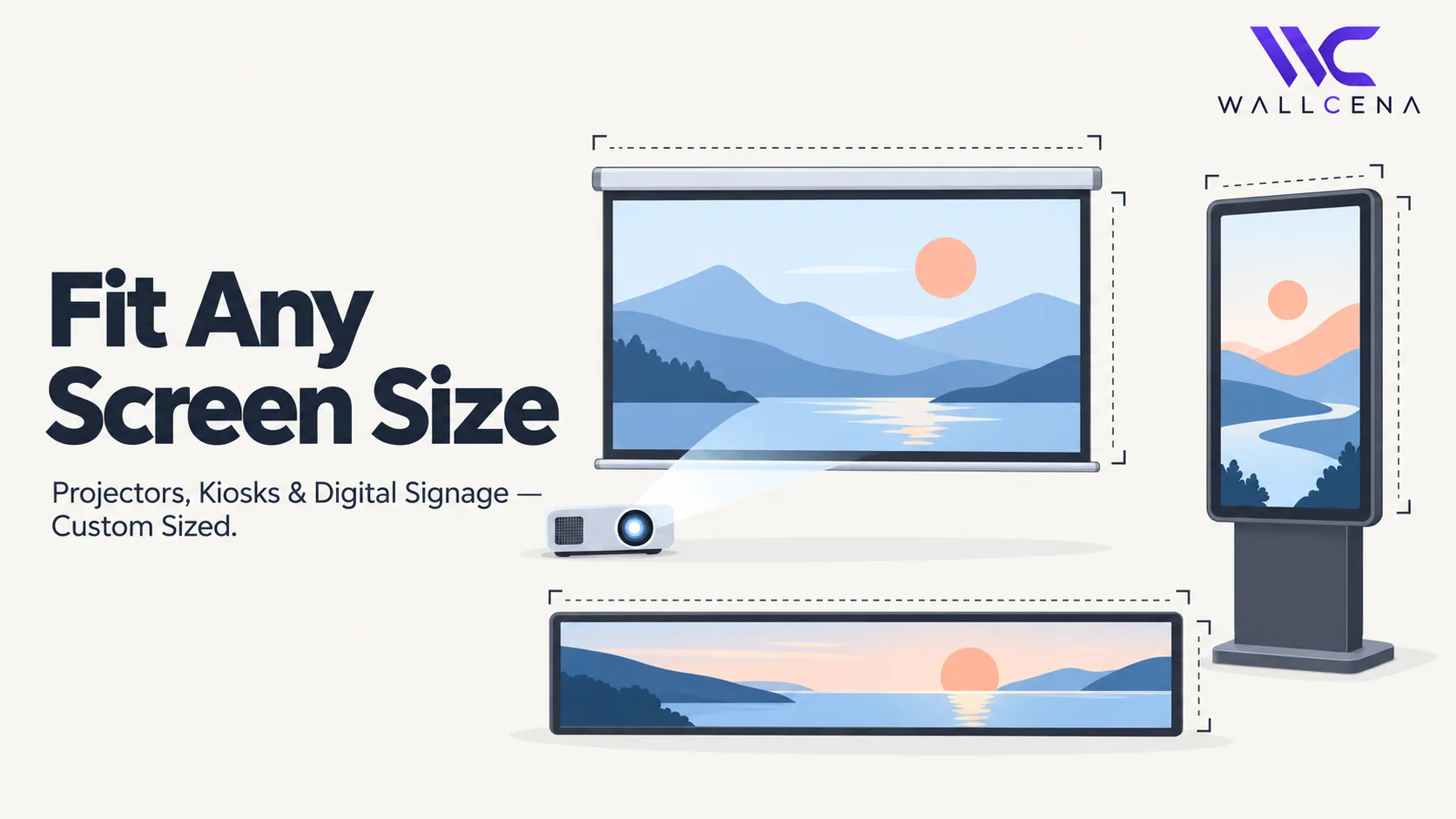
Most wallpaper tools are built around a small set of common device sizes — phones, tablets, laptops, monitors. That works fine for the majority of people, but it leaves out an entire category of screens that don't follow any standard consumer resolution at all: projectors, retail kiosks, digital signage displays, conference room screens, and similar setups. These often use unusual aspect ratios, non-standard resolutions, or portrait orientations that simply aren't in a typical preset list. If you've ever tried to fit a background image to one of these and ended up with awkward black bars or a stretched, distorted image, this is exactly the gap the Custom option in the Wallpaper Fit Tool is built to solve.
Step 1: Find the Exact Resolution of Your Display
Before resizing anything, you need the precise pixel dimensions of the screen you're fitting an image to — guessing here almost always leads to a slightly-off result.
- Projectors: check the manufacturer's spec sheet or on-screen display menu for "native resolution" — this is different from the "supported input resolution," which is often a wider range
- Digital signage displays: check the device or content management system's display settings, or the panel's model number on the manufacturer's site
- Kiosk touchscreens: most run on embedded Windows or Android systems, so check display settings the same way you would on a regular PC or tablet
- Conference room / meeting screens: check the connected system's display settings (the computer or media player driving the screen), not just the panel itself, since scaling settings there can affect the actual usable resolution
Step 2: Open the Fit Tool and Select Custom
- Go to wallcena.com/fit
- Upload the image you want to use as the background
- Instead of choosing one of the standard presets, select Custom
- Enter the exact width and height in pixels that you found in Step 1
Step 3: Account for Unusual Aspect Ratios
This is where non-standard screens differ most from typical wallpaper use. Many digital signage displays and some projectors use unusual ratios — ultra-wide banner-style signage, square displays, or tall portrait orientations for kiosks — that are dramatically different from the 16:9 most images are shot in. When your target resolution is far from your source image's original ratio, the crop preview becomes especially important: use it to reposition the image so the most important visual content stays within the final frame, rather than getting pushed off into the cropped area.
Step 4: Consider Safe Zones for Interactive Kiosks
If the background is going behind interactive UI elements on a kiosk (buttons, menus, touch targets), leave extra visual breathing room around the edges and center where controls typically sit. A background that looks great as a standalone image can still clash badly with on-screen buttons or navigation if there's not enough contrast or empty space where the interface actually needs it.
Step 5: Download and Test on the Actual Display
Once cropped, download the fitted image and test it directly on the target display before finalizing anything, especially for signage or kiosks that might be installed somewhere hard to quickly re-access afterward. Colors, brightness, and even framing can look slightly different on a projector or commercial-grade panel compared to a laptop screen, so a quick real-world check avoids surprises after installation.
Common Non-Standard Resolutions to Know
- Standard projectors (1080p): 1920 × 1080
- 4K projectors: 3840 × 2160
- Ultra-wide digital signage banners: often 1920 × 540 or similar wide, short ratios
- Portrait digital signage: 1080 × 1920, the rotated version of standard Full HD
- Square kiosk displays: 1080 × 1080 or similar 1:1 ratios
These are common starting points, but always confirm the exact figure for your specific hardware rather than assuming — non-standard display categories vary more than consumer phones and monitors do.
Why This Matters More for Commercial Displays
A slightly stretched wallpaper on a personal phone is a minor annoyance. The same issue on a kiosk in a retail store or a screen in a client-facing meeting room reflects on the business using it. Getting the exact resolution right isn't just a technical nicety in these settings — it's part of how professional the whole setup looks to whoever's actually seeing it.
Frequently Asked Questions
Can the Fit Tool handle resolutions that aren't in the standard preset list?
Yes. Selecting Custom lets you enter any exact width and height in pixels, which covers projectors, kiosks, and signage displays that don't match typical consumer device sizes.
What if I don't know my display's exact resolution?
Check the manufacturer's spec sheet for "native resolution," or check the display settings of whatever computer or media player is driving the screen, since that's often more accurate than the panel's general specs alone.
Why does my signage image look fine in preview but off once installed?
This usually means the native resolution used for fitting didn't match the display's actual output resolution, or the panel's own scaling settings altered the image slightly. Always test on the physical display before finalizing.
Do I need special software for unusual aspect ratios like ultra-wide signage banners?
No. The Custom option in the Fit Tool handles any aspect ratio, including unusually wide or tall dimensions — you just need the exact target resolution.
Get the Exact Fit for Any Screen
Use the Wallpaper Fit Tool's Custom size option to resize any image to your exact display resolution, whatever the aspect ratio.
Community
Comments (0)
Log in to like and comment.
No comments yet. Be the first to comment.