
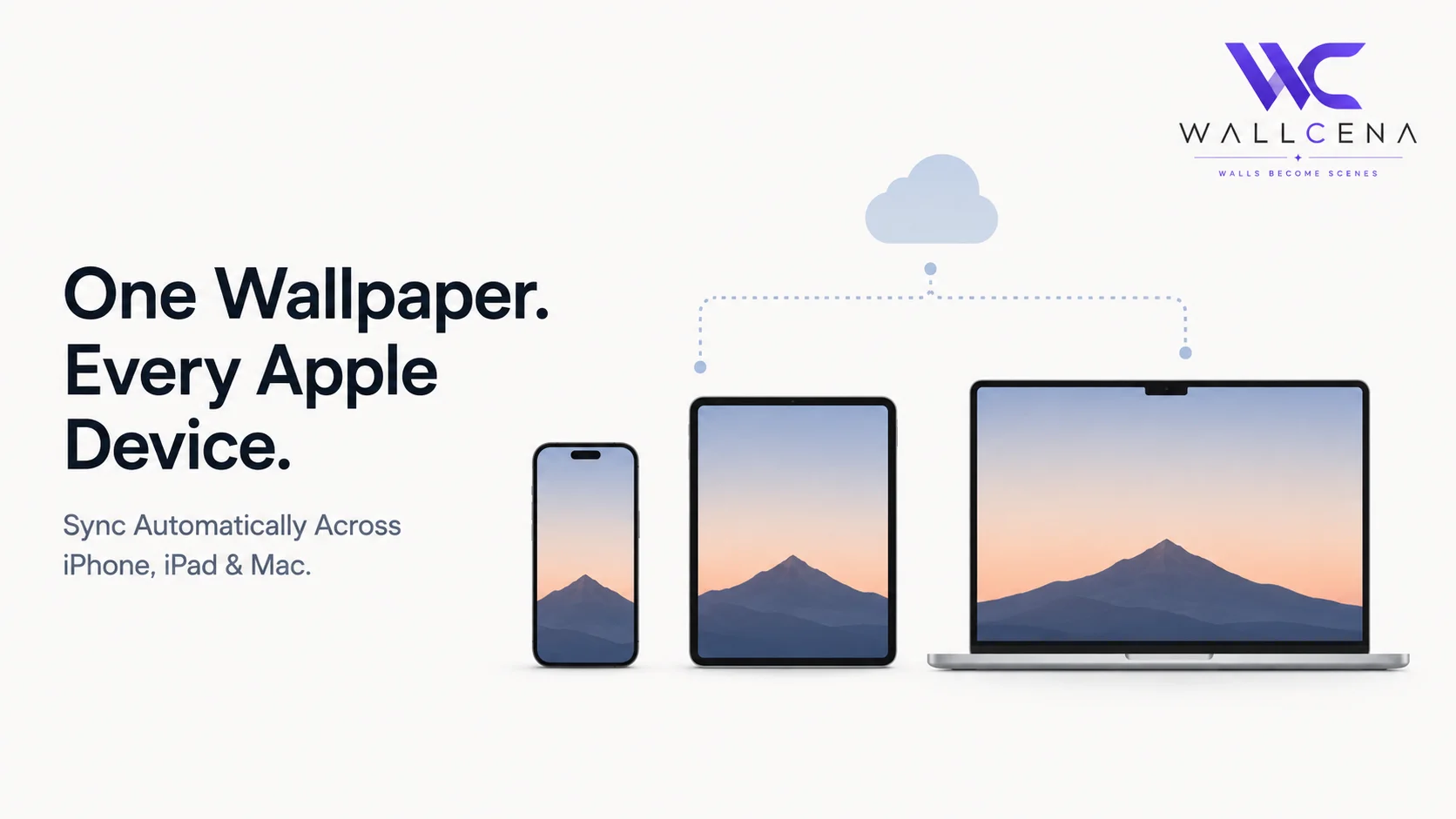
Why Manually Matching Wallpapers Across Devices Gets Old Fast
If you own an iPhone, iPad, and Mac, you've probably tried to give them a matching look at some point — the same photo or theme across every screen. The problem is that setting a wallpaper manually on each device means downloading the image three separate times, cropping it slightly differently for each screen size, and repeating the whole process every time you want to change it. Apple actually has a built-in way to avoid this entirely, though it's not something most people discover on their own.
Method 1: Use iCloud Shared Photo Library or Albums
The most reliable way to keep the same wallpaper source across all your Apple devices is to store it in an iCloud-synced album, so every device pulls from the same original file rather than a separately downloaded copy.
- On your iPhone, open Photos and create a new album (for example, "Wallpaper")
- Add your chosen wallpaper image to that album
- Make sure iCloud Photos is turned on: go to Settings → your name → iCloud → Photos, and enable syncing
- On your iPad and Mac, sign in with the same Apple ID and enable iCloud Photos there as well — the album and image will appear automatically on both
- Once synced, go into each device's wallpaper settings individually and select that same image from the shared album — you'll only need to do this once per device, and any future edits to the file will sync too
Method 2: Use Continuity Camera or AirDrop for a One-Time Sync
If you don't want to rely on iCloud syncing continuously, a simpler one-time method works well for a wallpaper you don't plan to change often.
- Choose your final wallpaper image on whichever device you're using
- Use AirDrop to send the image directly to your other Apple devices — this works between iPhone, iPad, and Mac as long as Bluetooth and Wi-Fi are enabled on all of them
- Once received, manually set it as the wallpaper on each device
- This method doesn't auto-update if you change the wallpaper later, but it's faster for a single, one-time match
Method 3: iPhone Mirroring and Universal Control for Mac Setup
If you're on a newer Mac and iPhone, Apple's Universal Control and iPhone Mirroring features make it easy to drag and drop files directly between devices without needing AirDrop or iCloud at all.
- Make sure both devices are signed into the same Apple ID and are near each other
- Enable Universal Control in System Settings → Displays on your Mac
- Once connected, you can literally drag an image file from your iPhone's screen straight onto your Mac, then use it directly as your desktop wallpaper
Why the Same Image Might Look Slightly Different on Each Screen
Even with a perfectly synced image, don't be surprised if the wallpaper looks slightly different across devices — this is normal, not a sign anything went wrong. iPhone, iPad, and Mac screens each have different aspect ratios, so the same image gets cropped differently to fill each screen properly. A photo that looks great cropped for an iPhone's tall screen might show more of the background on an iPad, or need extra width on a Mac's wider display.
To get the cleanest match across all three, it helps to start with a high-resolution image and use the Wallpaper Fit Tool to create three properly sized versions — one for iPhone, one for iPad, and one for Mac — so each device gets a version cropped intentionally rather than automatically.
Keeping Wallpapers in Sync Going Forward
Once your shared album is set up through iCloud Photos, updating your wallpaper in the future is simple: replace the image in that same album, then reselect it as your wallpaper on each device. Because the album itself stays synced, you won't need to re-transfer the file manually again.
Frequently Asked Questions
Do I need iCloud+ (paid storage) to sync wallpapers across devices?
No. Basic iCloud Photos syncing works with Apple's free storage tier, as long as your photo library isn't already at capacity.
Why does my synced wallpaper look cropped differently on my iPad vs iPhone?
Each device has a different screen aspect ratio, so the same image is automatically cropped to fit. This is expected behavior, not an error.
Can I sync wallpapers between an iPhone and an Android device?
Not automatically through iCloud, since it's an Apple-only ecosystem feature. You'd need to manually transfer the file (email, cloud storage link, or messaging app) to an Android device instead.
Does AirDrop keep the wallpaper updated if I change it later?
No. AirDrop is a one-time file transfer. If you want automatic ongoing syncing, use the iCloud Photos album method instead.
Next Steps
Before syncing, use the Wallpaper Fit Tool to create properly sized versions of your chosen image for each device, so your synced wallpaper looks intentional rather than automatically cropped.
Community
Comments (0)
Log in to like and comment.
No comments yet. Be the first to comment.