
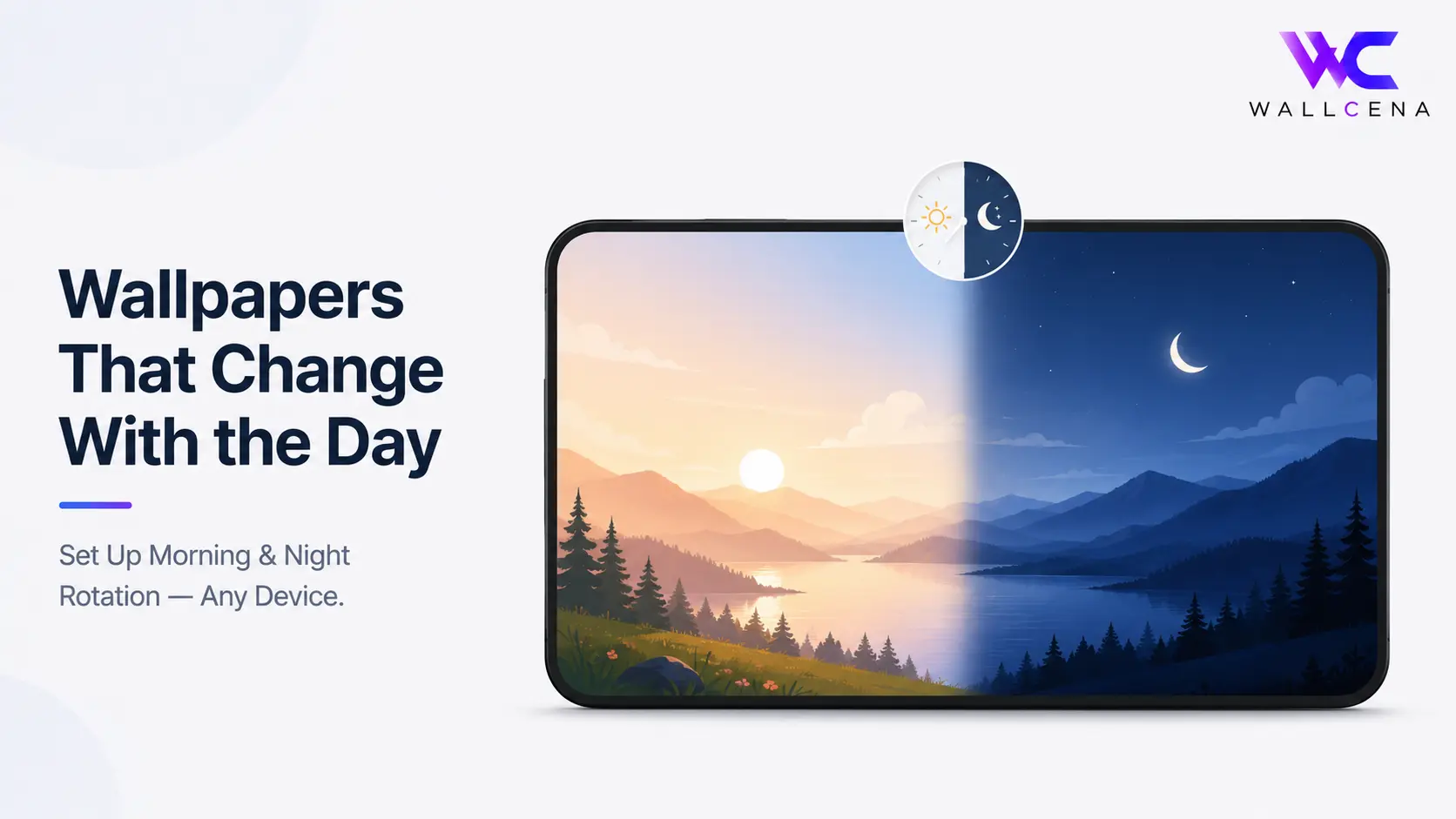
Why a Time-Based Wallpaper Actually Makes Sense
Most people set one wallpaper and leave it for months. But your screen looks completely different depending on when you're using it — a bright, high-contrast wallpaper that looks great at noon can feel harsh at midnight, while a moody dark scene that looks perfect at night can feel dull first thing in the morning. A time-based rotating wallpaper solves this by automatically switching between a morning theme and a night theme, so your screen always matches the moment instead of just matching whatever mood you were in when you set it.
The good news is that several platforms already support this natively, and the ones that don't have simple workarounds.
How to Set It Up on iPhone (Dynamic Wallpapers)
iPhone has a built-in feature for exactly this, using what Apple calls Dynamic Wallpapers.
- Open Settings and go to Wallpaper
- Tap Add New Wallpaper
- Choose from the Dynamic category, which automatically shifts appearance based on the time of day
- For fully custom photos rather than Apple's built-in dynamic options, use the Photo Shuffle feature instead, which can rotate through a selected album of images throughout the day
How to Set It Up on Android
Android's approach varies by phone brand, but most modern versions support automatic wallpaper switching.
- Press and hold an empty area of your home screen, then tap Wallpaper & style
- Look for an option like Auto wallpaper, Wallpaper carousel, or Daily wallpaper (naming varies by manufacturer)
- Select two images — one for morning/day, one for night — if your phone allows manual assignment, or choose a themed pack if it only supports automatic rotation
- If your phone doesn't support this natively, a lightweight wallpaper-changer app from the Play Store can handle time-based switching using your own photos
How to Set It Up on Windows
Windows has a built-in slideshow feature that can be adapted for time-based switching.
- Right-click your desktop and choose Personalize
- Select Background, then change the dropdown to Slideshow
- Choose a folder containing your morning and night wallpapers
- Set the time interval to match roughly when you want the switch to happen (for example, every 12 hours if you only have two images)
- For more precise time-of-day control, Task Scheduler can be set up to run a wallpaper-changing script at specific times, though this requires a bit more technical setup
How to Set It Up on Mac
macOS has a genuinely well-built option for this called Dynamic Desktop.
- Go to System Settings → Wallpaper
- Look for wallpapers labeled Dynamic in the built-in gallery, which automatically shift in appearance based on your Mac's clock and location-based daylight data
- For your own custom photos rather than Apple's built-in options, select multiple images and enable Shuffle, choosing a shorter time interval like every few hours to approximate a morning/night rotation
Choosing the Right Images for Morning vs Night
The rotation only feels intentional if the two images actually contrast in the right way, not just in subject matter.
- Morning wallpaper: brighter tones, warmer light, higher contrast — think sunrise colors, light skies, or crisp minimal designs
- Night wallpaper: darker backgrounds, cooler or muted tones, softer contrast — this also has a practical benefit on OLED screens, where darker wallpapers use less power
- Avoid picking two images with completely different compositions (like a busy scene for morning and a minimal one for night) since the sudden shift can feel jarring rather than smooth
Frequently Asked Questions
Does my phone need special software to rotate wallpapers by time of day?
Not always. iPhone and newer Android versions often support this natively through Dynamic Wallpapers or Wallpaper Carousel features. Older devices may need a third-party wallpaper-changer app.
Can I use my own photos for a time-based rotation, or only built-in options?
Most platforms let you use your own photos through Photo Shuffle (iPhone), Slideshow (Windows), or Shuffle (Mac). True time-of-day precision usually requires either a supported feature or a scheduling app.
Does a rotating wallpaper affect battery life?
A simple rotation between two static images has minimal impact. The effect is different from live or animated wallpapers, which run continuously and use more battery.
What's the easiest way to do this without any technical setup?
iPhone's built-in Dynamic Wallpaper category and Mac's Dynamic Desktop are the simplest options, since they require no scheduling or third-party tools at all.
Next Steps
Once you've picked your morning and night images, use the Wallpaper Fit Tool to resize both to your exact screen resolution before setting up the rotation, so neither version looks stretched or cropped.
Community
Comments (0)
Log in to like and comment.
No comments yet. Be the first to comment.