
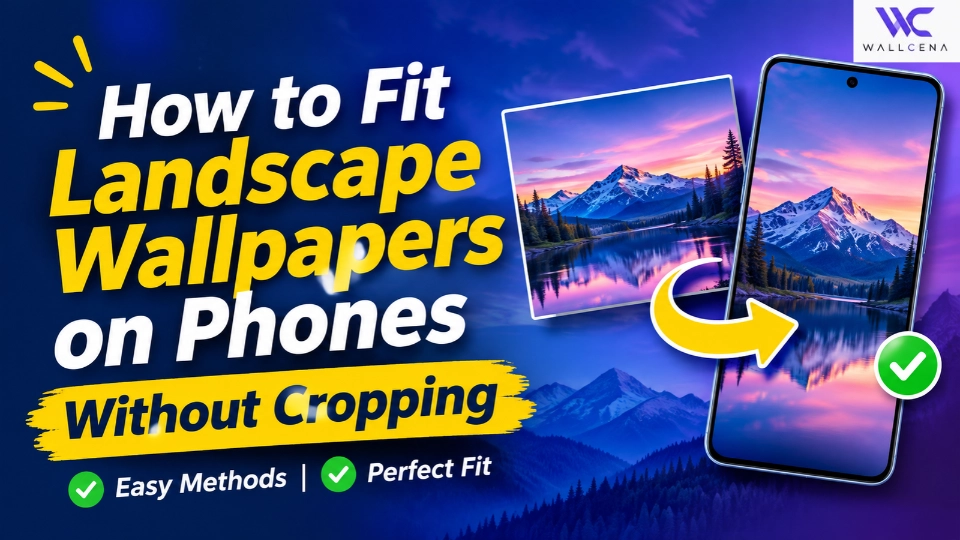
How to Use a Landscape Wallpaper on Your Phone Without Cutting Off the Main Subject
Have you ever found a beautiful landscape wallpaper that looks perfect on a computer but doesn't fit properly on your phone? When you try setting it as your mobile background, the phone automatically zooms in, cuts off important details, or removes the main subject from the picture.
This happens because desktop and mobile screens have different aspect ratios. Most desktop wallpapers are designed in a horizontal format, while smartphones use a vertical display. Fortunately, you don't need to abandon your favorite image. With the right cropping and resizing techniques, you can turn almost any landscape wallpaper into a phone-friendly background while keeping its most important details visible.
Why Landscape Wallpapers Get Cropped on Smartphones
A landscape wallpaper is usually wider than it is tall. A smartphone screen, on the other hand, is designed to display images vertically. When you use a horizontal image on a vertical screen, your phone tries to fill the entire display.
To accomplish this, the phone enlarges the image and removes portions of its left and right sides. Depending on the original composition, this can cut off mountains, buildings, characters, faces, or other important elements.
For example, a 3840 x 2160 desktop wallpaper has a 16:9 aspect ratio, whereas a 1080 x 2400 smartphone wallpaper has a much taller 9:20 aspect ratio. Simply stretching the desktop image to fit the phone can distort the original picture.
How to Convert a Landscape Wallpaper Into a Portrait Wallpaper
There are several ways to make a horizontal image suitable for a vertical smartphone display. The best method depends on the image composition and how much of the original picture you want to preserve.
1. Crop the Image Around the Main Subject
Cropping is one of the easiest ways to convert a landscape wallpaper into a portrait background. Instead of allowing your smartphone to crop the image automatically, choose the most important part yourself.
- Open your original landscape wallpaper in an image editor.
- Choose a portrait aspect ratio that matches your phone.
- Move the cropping frame around the main subject.
- Keep important objects away from the edges.
- Preview the result before exporting the image.
This method works particularly well for landscape photography, portraits, architecture, and wallpapers featuring a single central character. However, it may remove some scenery from the original image.
2. Add a Blurred Background Instead of Cropping
If you want to preserve the entire landscape image, adding a blurred background is a useful alternative. Rather than cutting off the original picture, you can place the complete landscape image in the center of a portrait canvas.
The empty space around the image can be filled with an enlarged, blurred version of the same wallpaper. This creates a natural-looking portrait background without removing important details.
- Create a new portrait canvas using your phone's screen dimensions.
- Duplicate your original landscape wallpaper.
- Enlarge the background copy until it covers the entire canvas.
- Apply a soft blur to the enlarged background.
- Place the original landscape image over the blurred background.
- Adjust the size and position until the composition looks balanced.
This technique is particularly useful for cinematic wallpapers, anime backgrounds, nature photography, and gaming images.
3. Use Background Padding to Preserve the Full Image
Another option is to add extra space around your landscape wallpaper instead of stretching or cropping it. This is often called background padding or canvas expansion.
You can use a matching solid color, a gradient, or an extended version of the original background to fill the additional space. The original image remains intact, while the expanded canvas takes the shape of your smartphone display.
- Start with your original landscape image.
- Create a new portrait-sized canvas.
- Place the landscape image in the center.
- Fill the remaining space with a complementary background.
- Adjust the spacing to create a clean composition.
This approach works especially well for minimalist wallpapers, space photography, abstract backgrounds, and images with simple color palettes.
What Is the Best Wallpaper Size for a Smartphone?
The ideal wallpaper dimensions depend on your smartphone's native display resolution. Choosing an image with a suitable aspect ratio can reduce unwanted cropping and help maintain image quality.
- 1080 x 1920: A standard Full HD portrait wallpaper.
- 1080 x 2400: A common tall smartphone wallpaper format.
- 1170 x 2532: A portrait resolution used by some iPhone models.
- 1290 x 2796: A high-resolution portrait format used by some iPhone models.
- 1440 x 3200: A high-resolution option for compatible Android displays.
These are example resolutions rather than universal settings. Always check your device's actual display resolution before creating a wallpaper.
How to Prevent Your Phone Wallpaper From Looking Blurry
Even if you successfully convert a landscape image into a portrait wallpaper, the final result may look blurry if the original image does not contain enough pixels.
Enlarging a small image does not recreate the original details. For the best result, begin with a high-resolution source whenever possible.
- Download the original high-resolution wallpaper instead of a thumbnail.
- Avoid enlarging low-resolution images excessively.
- Maintain the original image proportions when resizing.
- Use a suitable export quality for JPEG or PNG images.
- Check the final wallpaper on your phone before using it permanently.
Find and Create Wallpapers That Fit Your Screen With WallCena
Finding a beautiful wallpaper is only half the process. The image should also match your device's screen dimensions so that the important details remain visible.
At WallCena, you can explore wallpapers for different devices, resolutions, and visual styles. Whether you prefer 4K desktop backgrounds, AMOLED wallpapers, anime artwork, or mobile wallpapers, choosing an image designed for your screen can make a noticeable difference.
You can also use the WallCena Wallpaper Fit Tool to resize, crop, and fit an image to a custom screen size. This makes it easier to prepare a wallpaper for your smartphone without manually experimenting with multiple image dimensions.
Final Thoughts
You don't have to stop using a beautiful landscape wallpaper just because it was originally designed for a computer screen. By carefully cropping the image, adding a blurred background, or expanding the canvas, you can create a portrait wallpaper that looks natural on your phone.
The most important thing is to preserve the main subject, maintain the original image proportions, and choose dimensions that suit your smartphone. With the right approach, your favorite desktop wallpaper can become an attractive mobile background too.
Community
Comments (0)
Log in to like and comment.
No comments yet. Be the first to comment.